
You’ll master Oculus Quest’s enhanced hand tracking by first enabling the feature through Quick Settings > Movement tracking, then practicing essential gestures like Point, Pinch, and Palm Pinch for navigation. The new high-frequency system captures 90 FPS data points with improved grab mechanics and an 80ms Transform Buffer that eliminates frustrating dead drops during object interaction. Advanced jitter smoothing and seamless controller-to-hand switching create more precise virtual experiences, while local processing protects your privacy during gesture recognition and guarantees peak performance.
Understanding the Latest Hand Tracking Technology Improvements
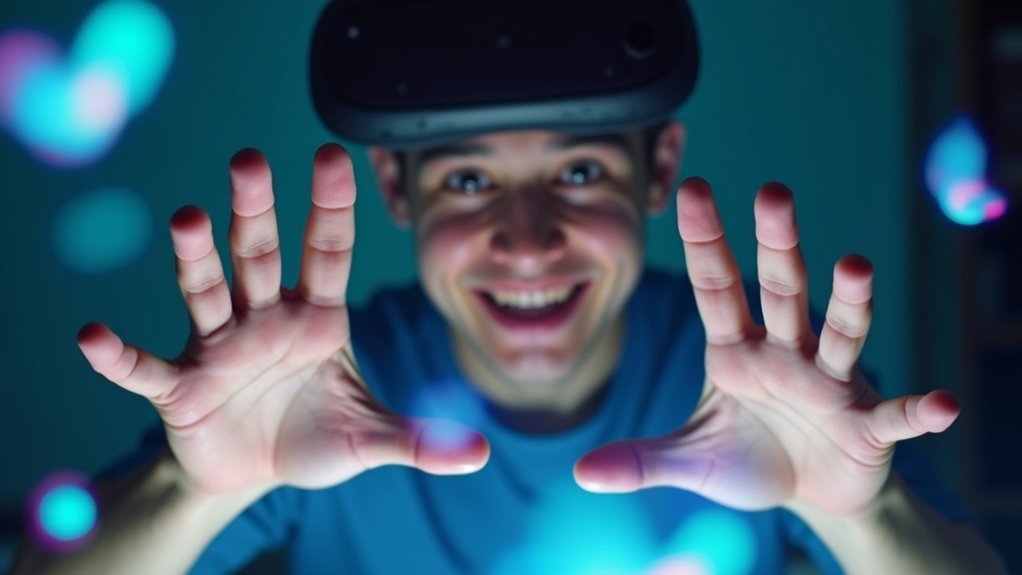
While earlier versions of Oculus Quest hand tracking showed promise, the latest technology improvements have revolutionized how you’ll interact with virtual environments.
The High Frequency Hand Tracking system now delivers exceptional gesture detection precision, creating a more immersive VR experience than ever before.
You’ll notice seamless dynamic switching between controller and camera-tracked hands based on your activity.
New algorithms enhance grab and throw mechanics, accurately tracking your users hands and fingers movements while improving virtual object interaction reliability.
Advanced jitter and drift management employs sophisticated smoothing algorithms and confidence data, reducing misalignments between your virtual and actual hand positions.
The updated Hand API provides developers with detailed position and finger orientation information, enabling more responsive applications that truly understand your natural gestures.
Enabling Hand and Body Tracking Through System Settings
Before you can experience the advanced hand tracking capabilities, you’ll need to activate the feature through your Quest’s system settings.
Press the Meta button to access the universal menu, then select the clock icon for Quick Settings. Navigate to Settings in the top right corner and choose Movement tracking to access Hand and Body Tracking.
Toggle the switch to enable the tracking system, allowing your headset to recognize your hands as input devices. This transforms your user experience by eliminating controller dependency.
You can easily enable and disable this feature by following the same steps and switching it off when needed.
Familiarize yourself with essential gestures like Point and Pinch for selections and Palm Pinch to return to the Universal Menu.
Mastering Essential Hand Gestures for VR Navigation
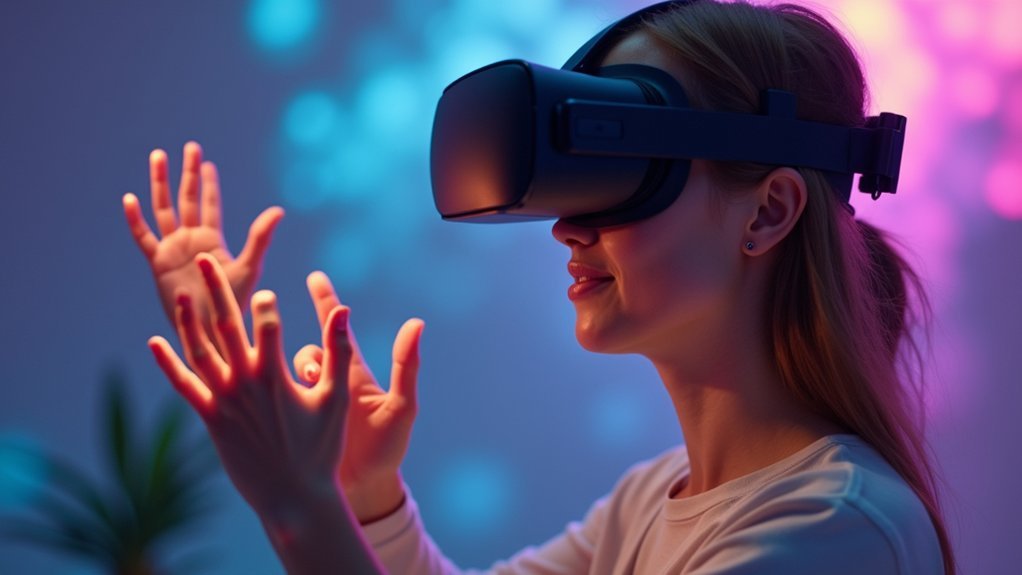
Now that you’ve enabled hand tracking, you’ll need to master the core gestures that make VR navigation seamless and intuitive.
You’ll start with basic navigation gestures like palm pinch and point-and-pinch, then progress to selection and interaction techniques that let you manipulate objects naturally.
Finally, you’ll explore advanced gesture controls that reveal the full potential of hands-free VR interaction.
Basic Navigation Gestures
Four fundamental hand gestures form the backbone of Oculus Quest navigation, transforming how you’ll interact with virtual environments.
The Palm Pinch gesture becomes your primary selection tool, letting you choose items from menus and applications with natural hand tracking precision.
When you need to scroll through content, Pinch and Drag gestures provide smooth navigation by pinching air and moving your hand directionally.
For precise selections, Point and Pinch gestures enhance accuracy when targeting small UI elements or specific virtual objects.
The Touch gesture enables direct interaction with interface elements, making typing and navigation remarkably fluid.
Mastering these basic gestures considerably improves your efficiency within any virtual environment, creating an intuitive experience that feels natural and responsive to your movements.
Selection and Interaction
Three core selection techniques will elevate your VR interaction skills beyond basic navigation, giving you precise control over virtual objects and interfaces.
The Palm Pinch gesture forms the foundation of VR selection – you’ll bring your fingers together as if pinching a physical object to grab virtual items. This natural hand movement makes interaction feel intuitive and responsive.
For enhanced precision, Point and Pinch combines targeting with selection. You’ll point at specific interface elements, then execute the pinch gesture to activate them. This technique dramatically improves navigation accuracy in complex menus.
The Pinch and Drag gesture extends your capabilities further, enabling smooth content scrolling. After pinching an object, move your hands in any direction to manipulate it.
Regular practice of these fundamental gestures will transform your VR experience.
Advanced Gesture Controls
Beyond the fundamental pinch and point interactions, five advanced gesture controls will release the full potential of your Oculus Quest hand tracking experience. These sophisticated movements enable precise object manipulation and create truly immersive VR environments.
| Gesture | Action | Application |
|---|---|---|
| Palm Push | Push objects away | Moving virtual items |
| Grab & Rotate | Rotate held objects | 3D model inspection |
| Two-Hand Scale | Resize objects | Adjusting item dimensions |
| Flick Motion | Quick menu navigation | Fast content browsing |
Mastering these gesture controls requires consistent practice with your hand tracking system. The computer vision algorithms analyze your hand position and movement in real-time, ensuring responsive interactions. Regular training sessions improve your confidence and fluidity, transforming basic selections into seamless object manipulation experiences that enhance your overall immersive VR journey.
Optimizing Grab, Drop, and Throwing Mechanics

Perfecting the fundamental interactions of grabbing, dropping, and throwing transforms your Oculus Quest hand tracking from functional to genuinely intuitive.
Your grab mechanics rely on hand collider overlap with object colliders, where closed fists or pinching gestures trigger detection. You’ll hear audio feedback that builds confidence during object interactions, creating a more immersive experience.
The drop mechanics analyze your hand position and speed to prevent frustrating false drops, ensuring reliable object handling.
When you’re throwing, the system constructs accurate vectors using your hand data, with high-confidence throws utilizing buffered hand transforms for precision.
The Quest accounts for hand tracking latency by buffering transforms for up to 80 milliseconds, optimizing gesture accuracy during rapid movements and maintaining responsive throwing mechanics.
Overcoming Common Hand Tracking Challenges and Limitations
Even with optimized mechanics, you’ll encounter persistent challenges that can undermine your hand tracking experience. Jitter creates misalignment between your virtual and actual hands, but you can combat this through jitter smoothing and bone-level filtering techniques.
Drift makes you feel like you’re moving while standing still—implement stillness freezing and interpolation methods to address this issue.
Combat hand tracking drift through stillness freezing and interpolation methods to eliminate false movement sensations during stationary moments.
Interaction limitations become apparent with objects smaller than an inch, so design virtual elements at appropriate scales. Gesture recognition accuracy varies between users, requiring continuous testing and refinement of your interaction techniques.
To improve throwing mechanics, incorporate motion detection heuristics and adjust release thresholds. These modifications reduce “dead drops” and enhance overall reliability, ensuring smoother hand tracking performance across different scenarios.
High Frequency Tracking Benefits for Enhanced Precision
You’ll notice dramatic improvements in gesture recognition when your Oculus Quest operates at higher tracking frequencies, capturing subtle hand movements that lower frame rates often miss.
The enhanced precision translates directly into reduced tracking latency, making your virtual interactions feel more immediate and responsive.
This combination of improved accuracy and faster response times creates a more natural experience where your hands move fluidly without the frustrating delays that can break immersion.
Improved Gesture Recognition
When you engage with virtual objects using Oculus Quest’s enhanced hand tracking, you’ll notice dramatically improved gesture recognition that stems from high frequency tracking’s ability to capture more data points per second.
This advancement transforms how you interact within virtual reality environments. The system’s deep learning algorithms differentiate between subtle hand movements, creating seamless interaction fluidity that feels natural and responsive.
You’ll experience fewer disruptions during complex gestures as the technology minimizes recognition errors.
Key improvements include:
- High Confidence Transform Buffer – Uses 80ms data verification for reliable throwing mechanics
- Reduced Dead Drops – Refined release thresholds eliminate frustrating gesture failures
- Dynamic Controller Switching – Seamless shifts between hand tracking and controller input
These enhancements collectively deliver more intuitive virtual reality experiences with precise gesture interpretation.
Reduced Tracking Latency
High Frequency Tracking’s most significant breakthrough lies in its ability to slash latency between your physical hand movements and their virtual representation.
This reduced tracking latency transforms your VR experience by delivering smoother, more responsive interactions that feel natural and immediate.
The system maintains a steady 90 FPS frame rate while buffering hand transforms for one second, creating ideal conditions for precise gesture recognition.
You’ll notice enhanced tracking reliability through advanced jitter smoothing and data quality assessment techniques that eliminate frustrating “dead drops” during use.
When you’re throwing objects in VR, High Frequency Tracking analyzes your hand velocity and direction using an 80ms data check, ensuring accurate throw vectors.
This combination of reduced latency and improved precision means your virtual hands respond exactly when and how you expect them to move.
Designing Effective User Interfaces for Hand-Based Interactions
Since hand tracking transforms how users navigate virtual environments, designing effective user interfaces requires a deep understanding of natural gesture vocabulary and spatial limitations.
You’ll need to master intuitive actions like pinching, swiping, and pointing to create seamless navigation experiences in your virtual world.
When designing your user interface, consider these vital elements:
- Size and positioning – Keep interactive elements larger than an inch and within comfortable reach.
- Hand rays for distance – Enable users to interact with distant objects like switches and buttons.
- Haptic feedback integration – Provide realistic sensations that reinforce virtual hand actions.
Regular testing and iteration are essential for refining gesture recognition accuracy.
You’ll minimize errors and create smoother interactions by continuously evaluating how users respond to your hand tracking implementations.
Performance Optimization Techniques for Smooth Tracking
Although hand tracking creates immersive experiences, you’ll need robust performance tuning to maintain the smooth 90 FPS required for comfortable VR interactions. Implementing strategic rendering adjustments and latency reduction techniques guarantees responsive gesture recognition.
| Technique | Purpose | Impact |
|---|---|---|
| Disable Occlusion Culling | Improve frame rates | Significant performance boost |
| Front-to-Back Rendering | Enhanced visual fidelity | Smoother interactions |
| Phase Sync/Late Latching | Reduce display latency | Real-time movement perception |
| High Frequency Tracking | Maintain 90 FPS | Peak responsiveness |
You’ll want to use profiling tools like Renderdoc to identify performance bottlenecks in your hand tracking implementation. Effective resource management combined with high frequency tracking achieves steady frame rates while preserving accurate gesture detection. These optimization strategies create seamless hand-based interactions that feel natural and responsive.
Privacy and Data Collection Considerations
When you enable hand tracking on your Oculus Quest, you’re granting access to camera data that captures detailed visual information about your hands and surrounding environment.
This data collection enables real-time image analysis for accurate movement tracking, but it’s essential you understand the privacy implications.
The Hand and Body Privacy Notice provides transparency about what information is gathered during hand tracking sessions.
You’ll want to review this privacy policy carefully to make informed decisions about your data.
Here are key privacy considerations:
- User consent is required before activating hand tracking features
- Data protection protocols safeguard your visual information during processing
- Real-time analysis occurs locally on your device to minimize data transmission
Understanding these privacy measures guarantees you can enjoy enhanced immersive experiences while maintaining control over your personal information.
Advanced Gesture Recognition and Future Capabilities
Beyond basic hand detection, Oculus Quest’s advanced gesture recognition harnesses high-frequency tracking technology that captures intricate finger movements with remarkable precision. You’ll experience enhanced user interaction through natural pinching, pointing, and swiping motions that seamlessly translate into virtual actions.
| Current Capabilities | Machine Learning Benefits | Future Developments |
|---|---|---|
| Real-time tracking | Reduced jitter and drift | Complex gesture sets |
| Seamless input switching | Improved accuracy | Haptic feedback integration |
| Natural hand movements | Adaptive learning | Enhanced API features |
| Multi-gesture support | Error correction | Sophisticated recognition |
The system’s machine learning algorithms continuously refine accuracy, eliminating tracking inconsistencies. You can shift effortlessly between hand and controller inputs as situations demand. Future capabilities promise more sophisticated gesture recognition and haptic responses, creating a truly immersive experience that developers can leverage through innovative API implementations.
Frequently Asked Questions
How to Improve Hand Tracking in Quest 3?
Make certain your headset’s cameras aren’t blocked and you’re in well-lit conditions. Practice pinch, drag, and point gestures regularly. Enable Auto Switch and High Frequency Hand Tracking features for smoother performance.
How to Make Quest 3s Tracking Better?
You’ll improve Quest 3’s tracking by cleaning headset cameras regularly, updating software frequently, practicing hand gestures consistently, enabling Auto Switch in settings, and ensuring proper lighting without obstructions blocking camera sensors.
How to Calibrate Hand Tracking in Oculus Quest 2?
You’ll navigate to Quick Settings by selecting the clock icon, then open Settings and choose “Hands and Controllers.” Toggle Hand Tracking on, guarantee good lighting, and practice pinching gestures regularly.
Is the Meta Quest 3 Hand Tracking Good?
You’ll find Meta Quest 3’s hand tracking greatly improved over previous models. It’s more accurate, responsive, and natural thanks to advanced algorithms and high-frequency tracking technology that reduces latency considerably.

Leave a Reply