You’ll find excellent beginner-friendly 360 video editing options like Insta360 Studio with its intuitive interface and AI-powered editing features, or Movavi Video Editor Plus for budget-conscious creators. Adobe Premiere Pro offers professional-grade tools with dedicated 360 workspaces, while Final Cut Pro X provides extensive immersive video capabilities. CyberLink PowerDirector, DaVinci Resolve, VideoStitch Studio, Pinnacle Studio, and mobile-friendly KinoVR round out your choices. Each platform streamlines complex stitching processes and provides essential trimming tools to transform your immersive content creation journey.
Adobe Premiere Pro for 360 Video Creation

When you’re ready to create professional 360 videos, Adobe Premiere Pro stands out as one of the most extensive editing platforms available.
You’ll find advanced editing features specifically designed for immersive content, including stitching tools that seamlessly blend footage from multiple camera angles. The software’s color grading capabilities guarantee your 360 video maintains consistent visual quality throughout.
Premiere Pro’s dedicated 360 workspace gives you specialized controls for adjusting viewer perspective and field of view.
The specialized 360 workspace provides intuitive controls for fine-tuning perspective and field of view adjustments in real-time.
You can preview your edits using VR headsets, making real-time adjustments for ideal immersive experience. The platform supports various 360 formats from different cameras and automatically injects metadata during export.
This guarantees your finished videos play correctly on platforms like YouTube and Facebook without additional formatting steps.
Insta360 Studio Desktop Editor
You’ll find Insta360 Studio’s desktop editor packed with beginner-friendly features like keyframe controls, AI Edit for automated highlight creation, and creative effects such as Tiny Planet and Barrel Roll.
The software’s clean interface makes maneuvering these tools straightforward, even if you’re new to 360 video editing.
When you’re ready to share your content, you can export in multiple formats and resolutions optimized for platforms like YouTube and Facebook.
Key Editing Features
While many 360 video editors overwhelm beginners with complex interfaces, Insta360 Studio’s desktop editor streamlines the process through its intuitive keyframing system that lets you define specific viewing angles throughout your footage.
You can add multiple keyframes to create dynamic perspective changes that keep viewers engaged.
The Quick Edit feature transforms your editing process by letting you record phone movements as live edits, making reframing incredibly simple.
When you’re pressed for time, the AI Edit functionality automatically analyzes your footage and selects highlights to create polished clips.
The ViewFinder tool gives you creative control with video effects, color adjustments, and FOV settings.
You’ll appreciate the customizable export settings that maintain high resolution and bitrate, ensuring your content looks professional across all social media platforms.
Export Format Options
Two primary export categories define your output options in Insta360 Studio Desktop Editor: equirectangular format for immersive 360-degree viewing and standard flat formats for traditional video playback.
You’ll access customizable settings that let you adjust bitrate and frame rate for best results. The software exports high-quality videos up to 4K resolution, perfect for professional sharing needs.
| Export Feature | Options |
|---|---|
| Video Formats | Equirectangular, Standard Flat |
| Resolution | Up to 4K |
| Quality Settings | Adjustable Bitrate/Frame Rate |
| Platform Integration | Direct Social Media Export |
| File Compatibility | Multiple Video Types |
Direct social media export streamlines your workflow, eliminating extra steps when posting to platforms. You can save projects in various file types, ensuring compatibility across different editing software and playback devices for maximum flexibility.
User Interface Design
Designed with simplicity at its core, Insta360 Studio Desktop Editor’s interface welcomes beginners with clean layouts and logical tool placement that won’t overwhelm new users.
You’ll find all essential editing tools organized intuitively, making navigation straightforward even for first-time 360 video editors.
The streamlined design lets you import footage directly from your SD card without complicated setup procedures.
Once your content’s loaded, you can easily apply effects using simple drag-and-drop functionality.
The user interface guides you naturally through the video production workflow, from initial editing to final output.
When you’re ready to share your creation, accessing multiple export formats requires just a few clicks.
This thoughtful interface design guarantees you’ll spend more time creating and less time learning complex software mechanics.
CyberLink PowerDirector 360 Features
When you’re ready to plunge into serious 360 video editing, CyberLink PowerDirector delivers an extensive workspace that’s specifically built for immersive content creation.
This stitching software provides professional tools for trimming and enhancing spherical footage with remarkable precision. You’ll access specialized 360 effects, shifts, and titles designed exclusively for immersive formats, ensuring seamless viewer experiences.
PowerDirector supports both monoscopic and stereoscopic 360 video formats, giving you flexibility for different projects and audiences.
PowerDirector’s dual format support delivers unmatched versatility for creating compelling 360 content across diverse viewing platforms and audience preferences.
The AI-powered features automatically detect scenes while correcting color and exposure issues, streamlining your workflow considerably. You can export projects in high-quality 4K resolution, making your content perfect for professional distribution on YouTube and Facebook.
These thorough capabilities make CyberLink PowerDirector an excellent choice for beginners seeking advanced functionality.
Final Cut Pro X Immersive Video Tools
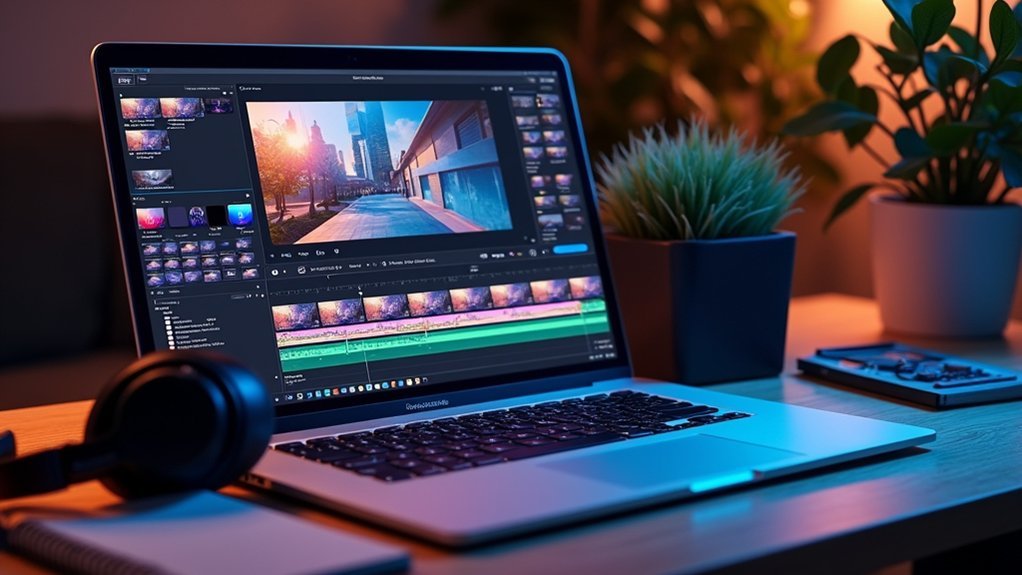
Apple’s Final Cut Pro X transforms 360 video editing with its extensive suite of built-in immersive tools that will facilitate your spherical content workflow from start to finish. These 360-degree editing tools support both monoscopic and stereoscopic formats, giving you flexibility for diverse projects.
| Feature | Benefit |
|---|---|
| VR Headset Preview | Real-time output viewing |
| Spatial Audio Integration | Enhanced immersive experience |
| Advanced Color Grading | Professional visual quality |
| Panning and Reframing | Precise viewer attention control |
You’ll appreciate the intuitive interface that makes immersive video editing accessible. The software’s panning and reframing capabilities let you guide viewers’ focus within the spherical environment, while spatial audio integration creates truly engaging experiences. Advanced color grading tools guarantee your Final Cut Pro X projects maintain professional standards throughout the editing process.
Movavi Video Editor Plus 360 Capabilities
If you’re looking for a more budget-friendly option that doesn’t sacrifice essential 360 video capabilities, Movavi Video Editor Plus delivers solid performance for beginners.
You’ll find specialized tools designed specifically for 360-degree footage, including easy import functions and straightforward editing features like trimming and stitching.
The software’s intuitive interface makes it simple to add effects, changes, and music to your immersive videos without requiring advanced technical skills.
Movavi 360 Features
Simplicity defines Movavi Video Editor Plus’s approach to 360-degree video editing, making immersive content creation accessible for newcomers to the field.
You’ll find user-friendly functionalities that support multiple 360 video formats, ensuring seamless integration with footage from various cameras. The editing software provides essential basic editing tools like trimming, cutting, and merging clips alongside advanced features including specialized titles, changes, and effects designed specifically for immersive content.
You can quickly master the intuitive interface without extensive technical knowledge. The platform doesn’t compromise on quality—you’ll access high-quality export options that preserve ideal resolution and clarity.
Whether you’re sharing on YouTube or Facebook, your 360-degree video maintains professional standards while benefiting from straightforward, beginner-friendly workflows that eliminate complexity from immersive content creation.
Beginner-Friendly 360 Tools
When you’re starting your 360-degree video editing journey, Movavi Video Editor Plus delivers intuitive capabilities that transform complex immersive content creation into manageable tasks. This beginner-friendly platform eliminates technical barriers through its user-friendly interface featuring drag-and-drop functionality.
| Feature | Benefit | Result |
|---|---|---|
| Stitching Tools | Seamless footage merging | Professional output |
| Effects and Transitions | Enhanced storytelling | Engaging content |
| High Resolutions Export | Quality preservation | Platform-ready videos |
You’ll access specialized effects and alterations designed specifically for 360 video editing, allowing creative expression without overwhelming complexity. The software maintains high resolutions during export, ensuring your content meets YouTube and Facebook standards. Built-in tutorials accelerate learning curves for novice editors, providing step-by-step guidance that builds confidence while developing essential 360-degree editing skills efficiently.
GoPro VR Player and Editing Suite
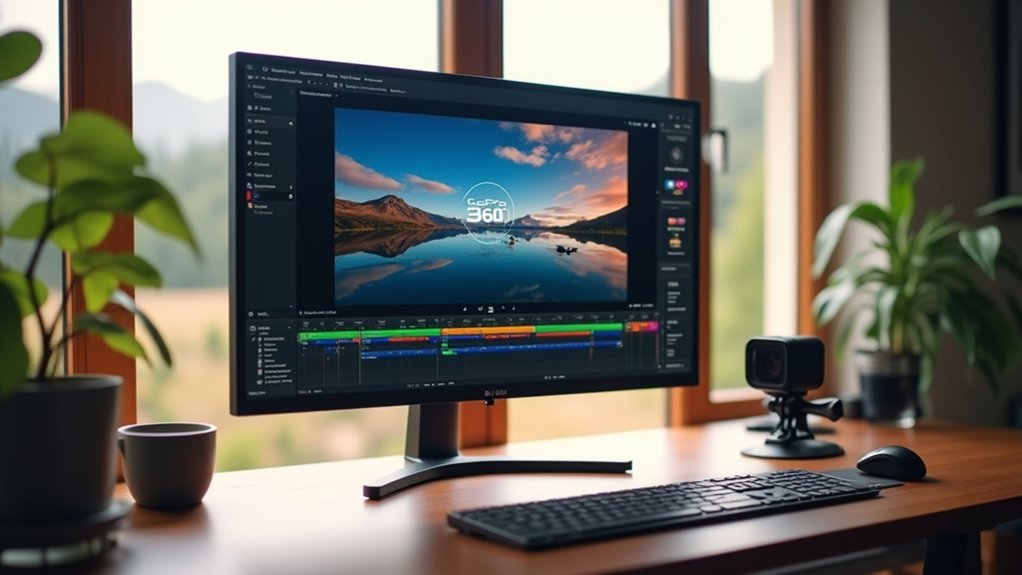
The GoPro VR Player stands out as a thorough solution that combines viewing and editing capabilities specifically designed for 360-degree videos.
You’ll find this editing suite particularly valuable if you’re just starting with immersive content creation. The platform offers essential stitching tools that automatically handle complex footage assembly, eliminating technical barriers for beginners.
You can import footage directly from GoPro cameras or other 360-degree devices using the simple drag-and-drop interface. The software supports standard equirectangular formats, ensuring your content remains compatible across platforms.
With user-friendly features like automatic stitching and intuitive trimming controls, you’ll quickly master the basics of 360 video editing. The streamlined workflow helps you focus on creating engaging content rather than wrestling with complicated technical processes.
VideoStitch Studio for Seamless Stitching
You’ll find VideoStitch Studio’s automatic stitching technology removes the guesswork from combining multiple 360-degree camera feeds into one seamless video.
The software’s multi-camera synchronization features guarantee your footage from different angles aligns perfectly in real-time, eliminating tedious manual adjustments.
When you’re ready to share your creation, the platform offers various export quality options that let you balance file size with visual clarity based on your specific needs.
Automatic Stitching Technology
Since 360-degree footage from multiple cameras requires precise alignment to create seamless panoramic content, automatic stitching technology revolutionizes how beginners approach immersive video creation.
You’ll find VideoStitch Studio’s advanced algorithms automatically merge footage by correcting lens distortion and ensuring smooth changes between clips. This eliminates manual guesswork that typically overwhelms newcomers.
You can leverage real-time previews to see stitching results instantly while editing, accelerating your workflow considerably. The software supports both monoscopic and stereoscopic formats, letting you create immersive content for various platforms.
Whether you’re starting out or working professionally, you’ll export high-resolution 360 videos while maintaining ideal quality. This automatic approach transforms complex multi-camera stitching into a streamlined process that’s accessible for beginners.
Multi-Camera Synchronization Features
Managing multiple 360-degree camera feeds becomes effortless with VideoStitch Studio’s sophisticated synchronization capabilities. The software’s auto-sync function automatically aligns video clips using audio waveforms, eliminating manual adjustments for precise timing. You’ll preview multiple camera feeds in real-time, streamlining your editing process and reducing post-production time markedly.
| Feature | Benefit | User Impact |
|---|---|---|
| Auto-Sync Function | Automatic alignment via audio waveforms | Eliminates manual timing adjustments |
| Real-Time Preview | Live monitoring of multiple feeds | Reduces editing time substantially |
| Format Support | Compatible with various 360 video formats | Accommodates diverse editing needs |
The intuitive interface guides you through complex stitching processes step-by-step, ensuring professional-quality results regardless of experience level. VideoStitch Studio’s multi-camera synchronization features support diverse 360 video formats, making it versatile for different camera setups while meeting various editing needs.
Export Quality Options
When exporting your 360-degree videos from VideoStitch Studio, you’ll access professional-grade quality options that support resolutions up to 8K for stunning visual clarity.
This video editing software lets you customize export settings including bitrate adjustments and frame rates to optimize your video projects for specific platforms or viewing devices. You can export your video in various formats while maintaining professional standards throughout the process.
The software’s real-time previews feature guarantees you’ll see exactly how your adjustments affect the final output before completing the export process. These high-quality options eliminate guesswork and prevent disappointing results.
With VideoStitch Studio’s intuitive interface, you’ll easily navigate through export configurations, making professional-grade 360-degree video production accessible even without extensive editing experience.
DaVinci Resolve 360 Video Workflow
DaVinci Resolve’s dedicated 360-degree workspace transforms complex spherical video editing into a manageable process that beginners can master quickly.
DaVinci Resolve’s intuitive 360-degree workspace makes spherical video editing accessible for beginners while maintaining professional-grade capabilities.
This professional editing software streamlines your workflow by supporting both monoscopic and stereoscopic formats, giving you flexibility with different footage types. You’ll find the interface intuitive for importing, editing, and exporting your spherical content.
- Built-in stitching tools automatically correct and blend your 360-degree video footage for seamless viewing
- Advanced color grading capabilities let you enhance storytelling through dynamic visual adjustments specifically designed for spherical content
- Integrated 360-specific audio features guarantee your sound design complements the immersive experience
The software’s visual effects and advanced tools help you create professional-quality content without overwhelming complexity, making it ideal for beginners entering 360-degree video production.
Pinnacle Studio 360 Video Editing
Although Pinnacle Studio may not carry the same reputation as industry heavyweights, it delivers robust 360-degree video editing capabilities that’ll surprise beginners with their depth and accessibility. The user-friendly interface streamlines your 360 video editing workflow, offering dedicated timeline controls for trimming and merging immersive footage.
| Feature | Benefit |
|---|---|
| Timeline Editing | Trim and merge 360 footage easily |
| Color Correction | Professional-quality adjustments |
| Responsive Titles | Text that adapts to 360 viewing |
| Export Options | High-resolution output for platforms |
The editing process becomes intuitive with over 2,000 effects from NewBlue, letting you enhance your projects creatively. You’ll appreciate the specialized 360 controls for adding music and transitions. When finished, export high-resolution 360 videos ready for YouTube and Facebook sharing.
KinoVR Mobile 360 Video Editor
Mobile video editing takes a revolutionary leap with KinoVR, an intuitive 360-degree editor that puts professional-grade immersive content creation directly in your pocket.
This user-friendly application transforms how you approach 360-degree videos, making complex editing accessible to everyone.
KinoVR’s thorough editing functions include:
- Trimming and music integration – Cut your footage precisely and add soundtracks that enhance your immersive video formats
- Dynamic reframing capabilities – Adjust perspective and field of view to create compelling viewing experiences from any angle
- Filter applications and effects – Apply professional-grade enhancements that elevate your content’s visual appeal
The app’s intuitive controls specifically cater to novice editors, eliminating technical barriers that often intimidate beginners.
You’ll produce polished videos without extensive knowledge, while compatibility across various 360-degree camera formats ensures versatility regardless of your equipment choice.
Frequently Asked Questions
What Is the Easiest Video Editing Software for Beginners?
You’ll find CyberLink PowerDirector and Filmora easiest for beginners. They’ve got intuitive interfaces, guided tutorials, and advanced features you can grow into. If you’re budget-conscious, try free options like Clipchamp or ACDSee Luxea first.
What Is the 321 Rule in Video Editing?
The 321 rule means you’ll keep three copies of your footage on two different storage types, with one copy stored off-site. This protects against hardware failures, accidents, and disasters.
What Is the Easiest Adobe Video Editing Software?
You’ll find Adobe Premiere Elements is the easiest Adobe video editing software. It’s designed specifically for beginners with guided edits, automated features, and intuitive tools that’ll help you create professional-looking videos quickly.
What Is the Best Platform for 360 Videos?
YouTube’s the best platform for 360 videos because it supports immersive viewing experiences. You can navigate scenes using mouse controls or device movement, and it automatically handles the necessary metadata for ideal playback.

Leave a Reply